
Business glossary
The Glossary is the read view of your business vocabulary. It lists every business attribute in one place with its definition, approval status, classifications, and how many source columns map to it, so anyone on your team can look up what a term means without opening the modeling canvas. It’s where the definitions you write on entities and attributes get consulted day to day.
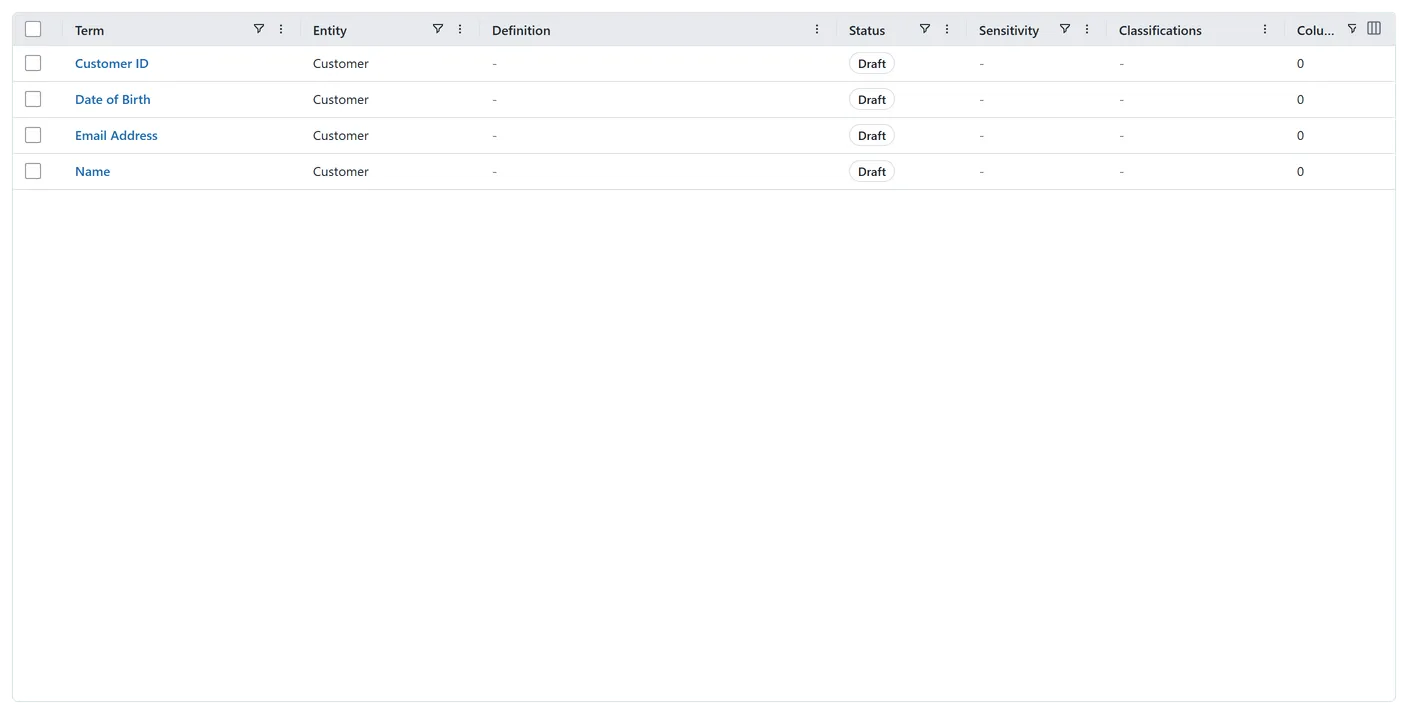 The Glossary: each row is a business attribute with its entity, definition, approval status, classification chips, and mapped-column count.
Open it from Business > Glossary in the left navigation. Everyone can read the glossary, and two fields are editable directly in the grid: double click a term’s name to rename it, and the full definition text saves as you go once you show the Definition (full) column, which is hidden by default. Everything else in the grid, including the Definition column (a read-only excerpt), status, classifications, and mapped columns, still reflects the attribute it comes from: to change any of those, edit the attribute on the canvas.
What appears in the glossary
Section titled “What appears in the glossary”Each row is a business attribute. The columns shown by default are:
- Term: the attribute’s name.
- Entity: the business entity it belongs to.
- Definition: a read-only excerpt of the authoritative prose for what the term means.
- Status: the definition’s place in the approval lifecycle: Draft or Approved.
- Sensitivity: the attribute’s value from the Sensitivity scheme.
- Classifications: the attribute’s remaining classification chips.
- Columns: how many source columns are matched to this attribute, so you can see which terms are actually used by your data and which are defined but unmapped.
More columns are available but hidden by default, among them Definition (full), the technical name, the data type, and whether the attribute is a business key.
Find a term
Section titled “Find a term”Search by name to jump to a term, and filter to narrow the list (for example, attributes with a given classification, or ones still in Draft). Filtering by status is the quick way to find the definitions that still need writing or approving.
Definition approval status
Section titled “Definition approval status”The status column reflects the same lifecycle you drive from the entity and attribute sheets:
- Draft: written but not yet reviewed and approved.
- Approved: an editor has approved the definition; the sheet records who and when.
Editing an approved definition reverts it to Draft, whether you edit it in the glossary grid or on the attribute itself, so a row showing Approved in the glossary is always one that reflects what was actually reviewed. Revise the definition text directly in the glossary grid, or open the attribute and edit it there; approving a definition still happens on the attribute. See Data governance overview.
Glossary versus governance status
Section titled “Glossary versus governance status”The glossary and your governance status read from the same model but answer different questions:
- The glossary is the vocabulary: a reference you read to look up what a specific term means.
- Governance status is the completeness check: each entity and attribute shows what is still incomplete (a missing definition, an unapproved one, no steward, an unmapped source) on its own sheet, and the entities directory can filter on it.
Reach for the glossary when you want to understand a term; check governance status when you want to find and close gaps.
Model-scoped glossary
Section titled “Model-scoped glossary”Each business model’s detail page carries its own Glossary tab, scoped to just that model. It shows the same fields as the organization-wide glossary (definition, status, classifications, mapped-column count) for the attributes belonging to the model’s direct member entities only: no submodels, no other models, and no scope picker to change it. The model’s Glossary tab always reflects exactly that model, nothing wider.
A row’s attribute name is a link: a single click switches to the model’s Entities tab and opens that entity in the detail pane, so you land on the entity behind the term without leaving the model, and a double click renames the attribute in place. Clicking elsewhere in the row selects it instead.
Related guides
Section titled “Related guides”- Business glossary and governance quick start: where the glossary fits in the full sequence
- Business entities: creating the attributes and definitions the glossary shows
- Data governance overview: classifications, ownership, and definitions
- Map and match source metadata: mapping the source columns counted per attribute