
Review an import
Every import ends at the same review surface, and a toggle switches between its two views: Review changes, a grid of every object the import touches, and Canvas, a diagram of the incoming tables linked to their generated layers by directional gray-dashed lineage edges. Every kind of import opens on Review changes, whichever way the metadata arrived, so everything below applies to all of them.
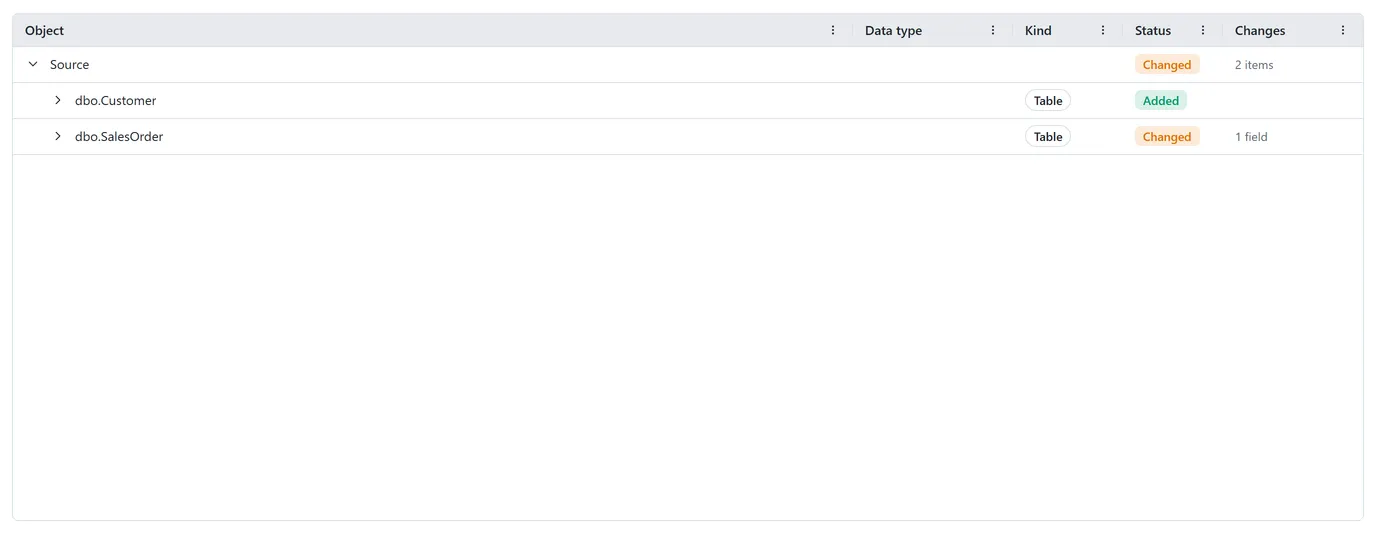 The Review changes grid: rows are grouped by functional layer (Source, Landing, Stage, Persistent Stage); status chips (Added, Changed, Removed, Unchanged) double as quick filters; columns appear in ordinal order, with the data type in its own aligned column and key flags inline after the name.
The grid shows this import only
Section titled “The grid shows this import only”The grid compares the incoming metadata against your catalog and scopes the result to the import in front of you:
- File imports never list removed tables. A file describes only what it contains: a table absent from this upload simply isn’t part of this import. A column that disappeared from a re-imported file does show, as a Removed column inside its table.
- CSV and SQL imports list removals only for their own source connection. Objects belonging to other connections never appear, no matter what the catalog holds.
Each row carries a status chip: Added, Changed, Removed, or Unchanged. Expand a Changed row to see the exact field differences. The chips above the grid double as filters; Unchanged starts switched off, so a re-import with nothing new looks pleasantly empty. A quick filter box plus Expand tables and Collapse all round out the toolbar for working through a large import.
Grouped by layer
Section titled “Grouped by layer”The grid groups every object by its functional layer. Source sits at the top: the tables you imported. Below it come the layers each source table generates: Landing, Stage, and Persistent Stage. A layer appears only when this import touches it, so an import with nothing to stage shows just Source.
Under each layer are its tables, and under each table its columns sit directly in ordinal order (the physical column order of the source), with Indexes and Checks kept in their own groups. Each column row leads with its ordinal number, then the column name, then its key indicators inline: a key icon marks a primary key, and a second marks a business key. The data type sits in its own aligned Data type column, shown as the platform’s target type: a discovered bigint appears as BIGINT and a char as STRING. Hovering a data type shows the original source spelling. Each layer’s status chip rolls up the strongest change beneath it, so a single changed column is enough to mark its layer Changed.
The generated layers carry real statuses computed against your catalog, not a guess. The first import of a file shows every generated object as Added. Re-import that file after a schema change and the affected objects flip to Changed, with the exact field differences listed; untouched ones read Unchanged.
A “Computing layer preview…” line above the grid means the statuses are still being calculated. Give it a moment.
When the preview can’t be computed
Section titled “When the preview can’t be computed”Some setups block layer derivation. The common one: the import’s project has no target connection, so DeltaVault doesn’t know where the generated objects would live. When a check like that fails, a warning banner appears above the grid (for example, “Project has no target connection”) and the generated Landing, Stage, and Persistent Stage layer groups do not appear. Fix the cause (in that example, set a target connection on the project) and the preview fills in.
Integration keys for this import
Section titled “Integration keys for this import”The review step has an Integration keys section where you can adjust, for this import only, whether to build a business key column for each table and whether to infer that key from the primary key or from your flagged business-key columns. The section is pre-filled from your organization or project settings. See Integration keys on import for what those controls do and what the import builds at the Staging layer.